Tutorial to Switch Midjourney for Artistic Image Generation on the All-in-One Platform
If you are serious about AI art, you likely started your journey on Discord. We all did. Typing /imagine into a chatroom full of thousands of strangers was a rite of passage.
But let’s be real: Discord is a chat app, not a creative workspace.
Tracing your own images is a nightmare. Finding that one prompt you wrote three days ago? Impossible. And switching between Midjourney for images and another tool for video usually means juggling five browser tabs and three subscriptions.
It’s time for an upgrade.
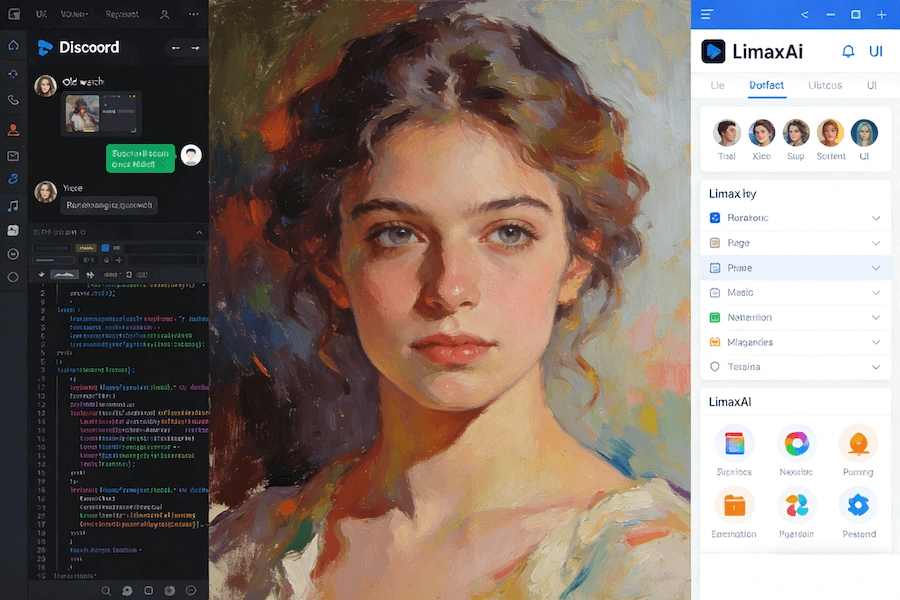
This post is a practical tutorial to switch Midjourney for artistic image generation on the all-in-one platform, LimaxAI. We’re going to show you how to move your workflow from a chaotic chatroom to a professional dashboard designed for artists.
Why Switch Your Workflow?
Before we get to the “How,” let’s address the “Why.” You aren’t leaving Midjourney behind—you are just accessing it through a better door.
On LimaxAI, you get:
- A Private Workspace: No more public feed clutter.
- Visual Settings: Click buttons for aspect ratios and styles instead of typing
--ar 16:9 --v 6.0. - The “All-in-One” Advantage: Generate an image with Midjourney, then immediately animate it with Runway or Keling without leaving the page.
Step-by-Step: Artistic Generation on LimaxAI
Ready to streamline your art? Here is how to get that painterly, high-end look using our system.
Step 1: Select Your Engine
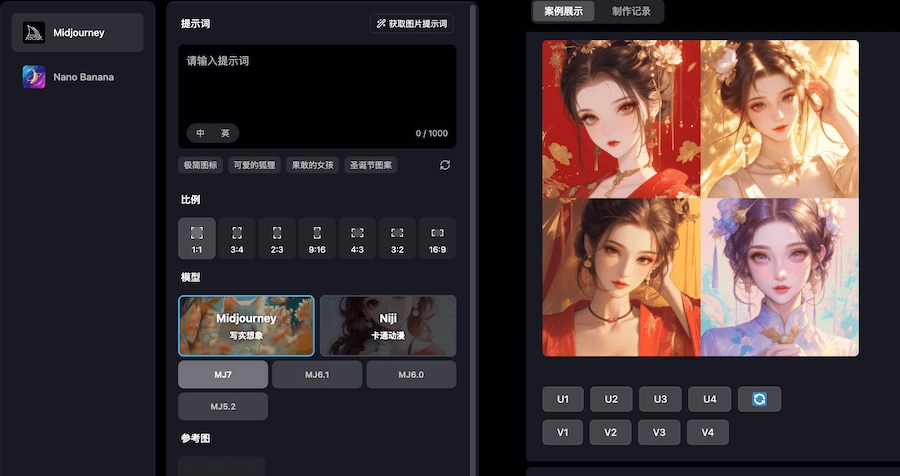
Log into your dashboard. Unlike the command line, you’ll see a visual model selector.
- Click the dropdown menu.
- Select Midjourney V6 (or the latest available version).
- Note: You can also switch to Nano Banana or Stable Diffusion here if you want to experiment, but for pure artistic fidelity, we’re sticking with MJ.
Step 2: Crafting the Artistic Prompt
In our web interface, you don’t need to memorize complex parameter codes. Focus on the art terms.
For a stunning oil-painting look, try this structure:
Subject: A solitary lighthouse on a jagged cliff Medium: Thick impasto oil painting, palette knife texture Artist Reference: Style of J.M.W. Turner and Van Gogh Lighting: Stormy atmospheric lighting, chiaroscuro
Type this directly into the prompt box. Below the box, use the Aspect Ratio slider to choose 16:9 for a cinematic feel or 3:4 for a portrait.
Step 3: Iterate and Refine
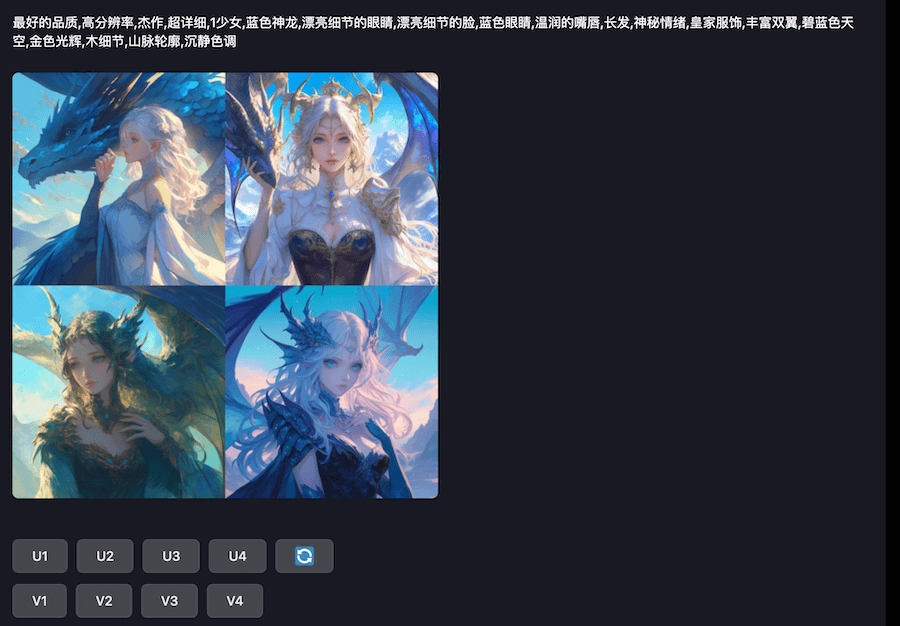
Hit Generate. Instead of scrolling up and down a chat feed to find your result, your image appears right in your workspace.
Not quite right? Hover over the image and click “Remix” (or “Variation”). This keeps your settings locked in so you can tweak just one word—like changing “Stormy” to “Sunset”—without retyping the whole command.
Step 4: Organization is Key
This is the biggest game-changer. Every piece of art you generate is automatically saved to your Personal Gallery.
You don’t need to copy links or download immediately for fear of losing them. You can come back a month later, search for “lighthouse,” and find your exact prompt and seed ready to go.
Beyond Images: The All-in-One Power Move
Here is something you can’t do on Discord.
Take that lighthouse painting you just made. In LimaxAI, you can select it and choose “Animate with Keling” or “To Video with Sora.”
Within seconds, your static oil painting becomes a moving scene with crashing waves. That is the power of an all-in-one platform. You aren’t just generating; you are building a pipeline.
Stop Typing Commands. Start Creating Art.
The tools should serve the artist, not the other way around. By switching your Midjourney workflow to LimaxAI, you reclaim your time and sanity.
No more scrolling. No more lost prompts. Just pure artistic focus.
Experience Midjourney, Sora, and Keling in one place.