
Most Powerful Image Model! GPT Image 2.5 Is Here — Now on LimaxAI
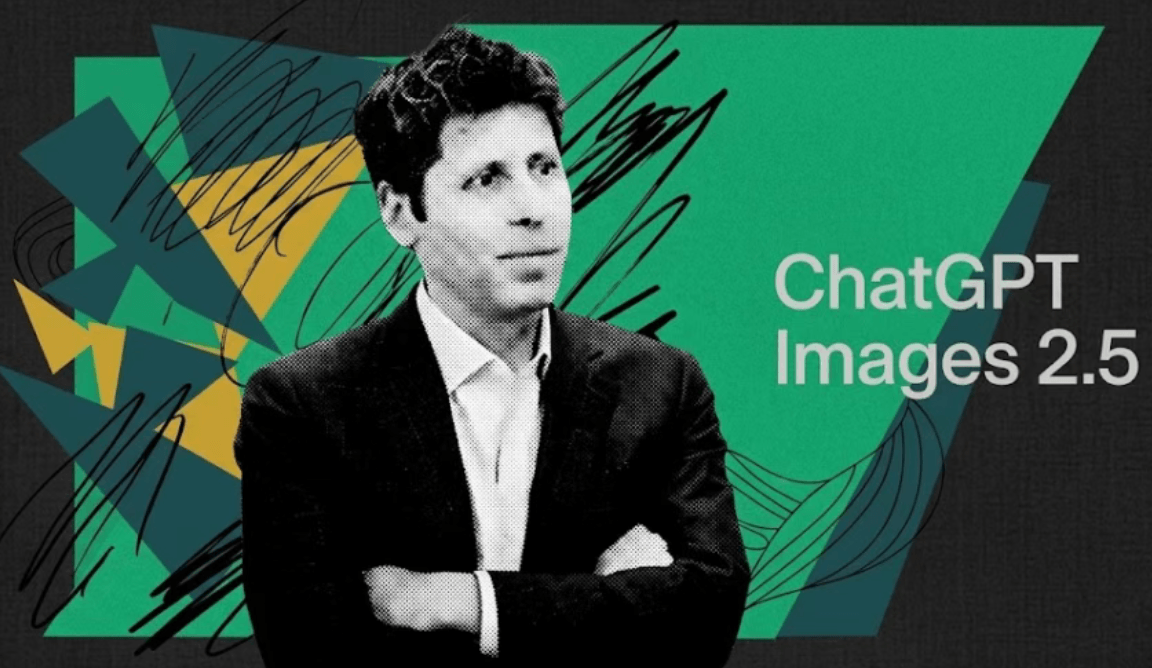
On September 8, OpenAI officially released its new image generation model GPT Image 2.5 (ChatGPT Images 2.5). Compared with the previous Images 2.0, this upgrade isn’t about “prettier pictures” — it’s about “easier edits”: up to 50% faster generation, precise point-and-edit control, and multi-turn edits that stay consistent.
OpenAI also added Sketch, creative templates, and image comments, bringing AI generation closer to a professional design workflow. Users now generate more than 3 billion images per week through ChatGPT Images and the GPT Image API.
Keywords: gpt image 2.5, gpt image 2.5 tutorial.
Published: September 9, 2026
1. Edit one thing without breaking the rest: precise editing is the big deal
The real pain of AI generation usually comes after the first image. The person looks right, you only want to change the outfit. The product is set, you only want a new background. The poster is done, you only want to fix one line — but old models would change everything else too.
GPT Image 2.5 puts precise editing front and center. Official examples like “full-body edit” and “multi-city travel ticket” show the edit sequence step by step, testing whether the model changes only what you asked while keeping the subject, composition, and other details intact.
A direct test from X user @thesoragirls made this concrete: she drew a candle in the image, marked one petal to stay unchanged, and asked the model to edit other areas. The fixed petal stayed put while everything else changed as requested.
To be fair, continuous editing still has rough edges. Japanese animation artist @genel_ai found that as edits stack up, images can still develop jagged edges and texture shifts. In other words, 2.5 is noticeably more stable, but quality loss still happens in complex scenes.
2. Reference images are steadier: new look, same subject
The second change in GPT Image 2.5 is how it handles reference images. You can provide a photo of a person, pet, or product, then ask for a new scene, style, or composition — and the new version holds onto the subject’s identity while improving lighting and texture.
Take the official pet dress-up example: given a dog photo, the model puts it in a white stunt outfit, yet the facial features, fur color, stance, and even the chair and lighting in the background still match the original. The point isn’t just a natural new outfit — it’s that you instantly recognize the same subject.
| Reference scenario | What to verify |
|---|---|
| Portrait | Are facial features stable across scene and style changes |
| Pet creative shot | Does fur, posture, and proportion survive the outfit swap |
| Product shot | Are packaging, label, material, and camera angle preserved |
This matters most when you reuse the same character, product, or brand asset. API users can generate different versions from one reference image, reducing the drift that used to appear on every regeneration.
3. Multi-turn edits stay consistent: earlier changes stick around
You edit a picture for the third time, and a detail you confirmed in round one suddenly changes — that’s the biggest time sink in iterative editing. GPT Image 2.5 clearly improves multi-turn consistency, so later edits build on earlier results with less subject drift, detail loss, and quality degradation.
OpenAI demonstrated this with three cases — “rotating cube,” “travel infographic,” and “birthday candles” — none of them one-shot; each involves several rounds of editing. The point they’re making: earlier edits are preserved, and later operations don’t keep wrecking what’s already done.
Making a product promo image, you might break the work into rounds:
- Round one — change the background, keeping the product shape, label, and angle.
- Round two — adjust lighting, keeping the background and product details you just confirmed.
- Round three — add copy space, keeping the composition and lighting from the first two rounds.
At the end, compare round one side by side with the last round: did the label change? Are materials and outlines stable? Did the confirmed background and color scheme survive? Each edit building on the previous result is exactly what makes multi-turn consistency valuable.
4. Two modes: faster everyday output, finer final polish
On the API side, GPT Image 2.5 ships two variants for different needs:
| Variant | Position | Best for |
|---|---|---|
| Flare | Default, speed-first | Social content, product experiences, visual search, rapid prototyping, bulk generation |
| Sunburst | High-quality, precision-first | Formal ad assets, high-end product shots, work needing fine control |
OpenAI says Flare generates higher quality than the previous GPT Image 2 while cutting latency by 50%; Sunburst trades longer generation time for finer editing precision.
A simple workflow: explore with Flare first, finalize with Sunburst. It’s not a hard rule — if you know exactly what you want, go straight to Sunburst; for daily images or quick idea checks, Flare is the better fit.
5. New tricks: sketch a few lines and it understands
Beyond the model itself, OpenAI added several new ways to work inside ChatGPT:
- Sketch: draw a rough sketch directly in ChatGPT and let the model generate the final image from it. Designing a room? Sketch the layout. Making clothes? Sketch the outline. Type
@Sketchto invoke it — this cuts down on text prompts, since position, proportion, and outline are hard to describe in words but easy to draw. - Templates: new common formats like Poster and Merch let you pick a template, then fill in the message, elements, and style instead of starting from a blank canvas every time.
- Image comments: mark exactly where on an image you want changes, for targeted edits.
- Prompt sharing: when sharing an image, you can share the prompt that made it, so others can swap in their own photos and keep generating.
These features fill in the “after generation” workflow, turning image generation from a one-shot gamble into a process you can keep refining.
6. GPT Image 2.5 tutorial: three steps to get started
Want to try the upgrade yourself? Here’s the flow:
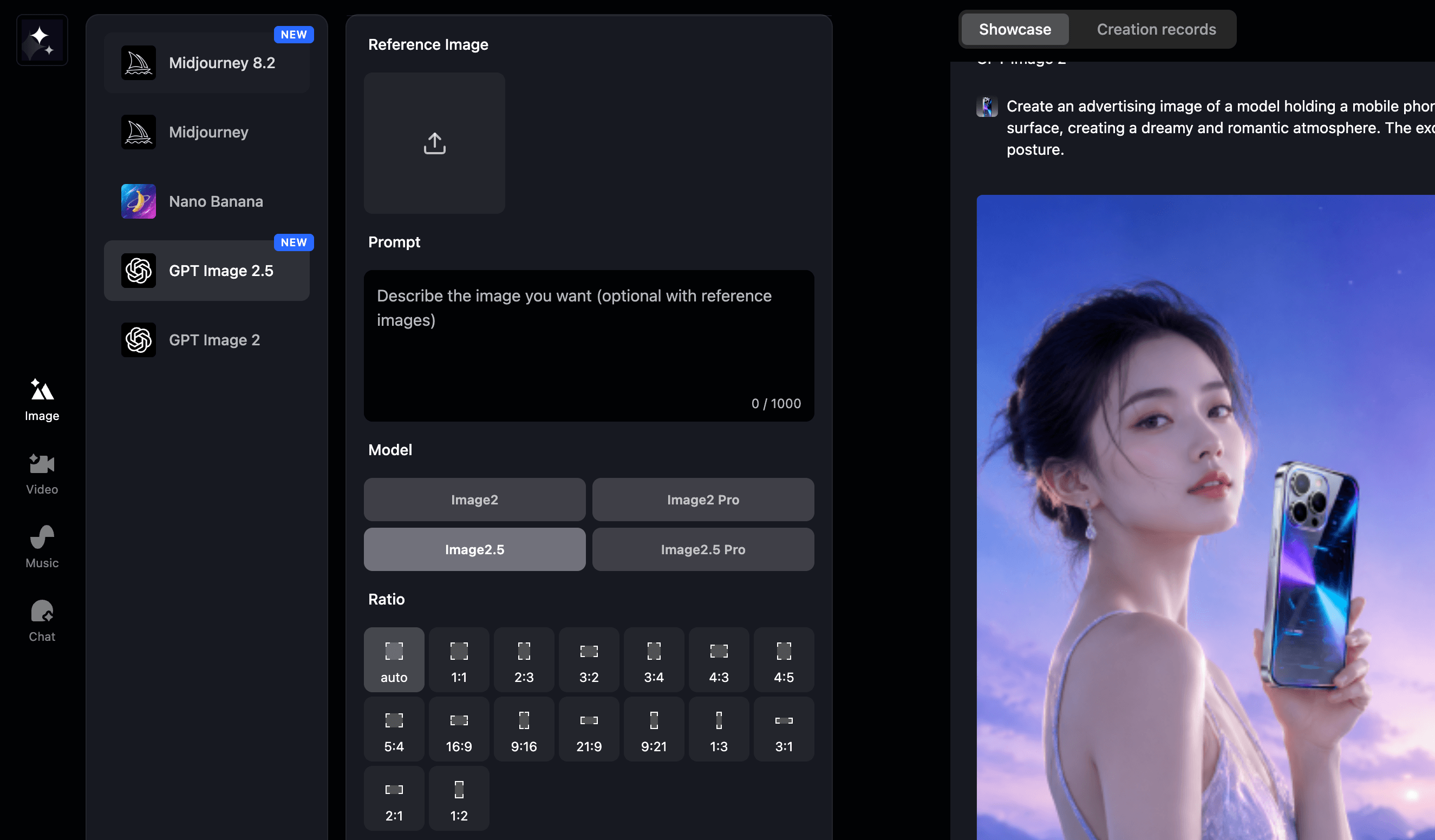
- Open the image generator and select the GPT Image 2.5 model.
- Enter a prompt or upload a reference image: for edits, upload the person, pet, or product photo and spell out what to change and what to keep.
- Pick a mode and generate: try a few options in fast mode first, then use high-quality mode for the final details once the direction is set.
To judge whether this upgrade fits your work, test it on a familiar image: upload it, make one clear edit request, and write out what should be preserved. Then check three things — is the wait shorter, does the subject stay true, and do details hold up after several edits.
Summary
GPT Image 2.5’s focus is clear: make post-generation edits easier to control, keep reference images stable across multiple uses, and fold Sketch, templates, and image annotations into the workflow.
| Item | Takeaway |
|---|---|
| Speed | Up to 50% lower latency |
| Precise editing | Point-and-edit without breaking the rest |
| Reference fidelity | New look, same subject |
| Multi-turn consistency | Earlier edits stick around |
| Two modes | Flare for speed / Sunburst for quality |
| New features | Sketch, Templates, image comments, prompt sharing |
As for realism, detail, and quality after multi-turn edits, early tests are split — some see clear gains in fashion design, while others think 2.0 does better on certain realistic scenes. How far GPT Image 2.5 can push these will take more real-world use to tell.
If you want to try the upgrade yourself, you can use GPT Image 2.5 on LimaxAI right now — no complicated setup, just open and go.